Thursday, 19 July 2012

Master Google Android: 40 Tips and Tricks


Master Google Android: 40 Tips and Tricks


We've assembled 40 tips and tricks to help you make the most of your Android phone. Some are specific to
 Android 2.0 or later, but most apply to any Android-based device. And not one of these tricks requires you to jailbreak anything.Android, as recent Verizon commercials remind us, is the antithesis of Apple's celebrated handset: It's open source, fully customizable, and free from unexplained app rejections. If the iPhone is Apple's inalterable masterpiece, the Android platform is Google's open canvas. The palette is in your hands; it's up to you to add color.
So grab your phone, and get started--it's time for you to become a certified Android master.

Optimize Your Home Screen

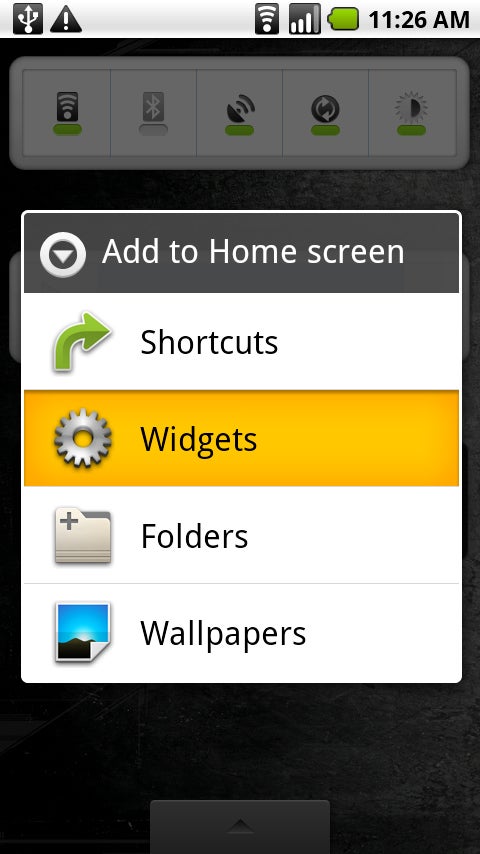
Android WidgetsTo add a widget, hold your finger on any open space, and then select 'Widgets' from the pop-up menu.1. Make the most of your space by using widgets--dynamic programs that operate right on your home screen. Simply hold your finger on any open space, and then select Widgets from the pop-up menu. Widgets come in a huge variety of sizes and functions, so search the Android Market to find what works for you.
2. Prefer not to be bothered by a sound every time an e-mail arrives? Head into Gmail's Settings menu and set its ringtone toSilent. You'll still see new-message alerts in the notification panel at the top of your screen, and you can always pull the panel down to get detailed information. You can configure text messaging and other alert-generating apps the same way.
3. Set up one-touch dialing for the people you call the most. Hold your finger on an open space and select Shortcuts. Then, touchDirect dial and pick the person from your contact list. If one-touch texting is what you crave, use the Direct message option instead.
4. To drop your favorite Web pages onto your home screen, long-press on any site in your browser's bookmarks and then select the Add shortcut to home option.
5. Try using folders to keep your home screen organized. Long-press on a blank space and select Folders to create one. You can then drag and drop frequently used contacts, apps, or other shortcuts into it to cut down on clutter. To rename a folder, press and hold the folder's title bar while it's open.

Get Around Android

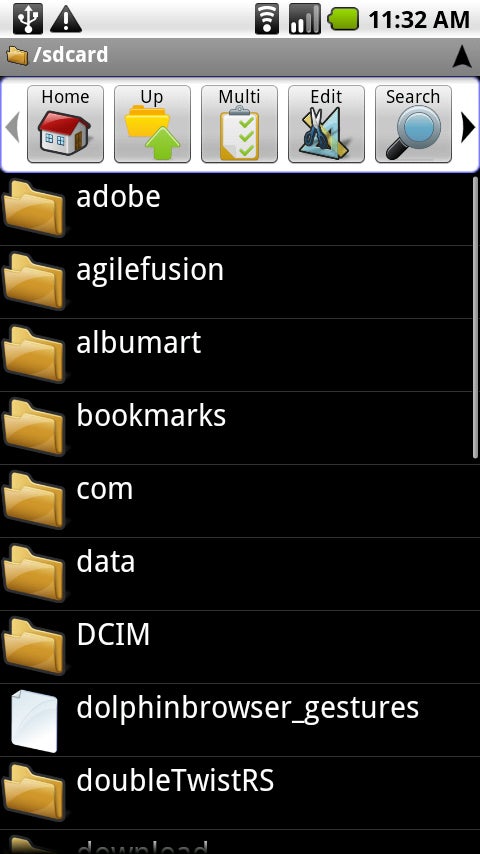
Android AstroAstro allows you to browse through your phone as you would a computer.6. Make file management a snap with a utility such as Astro, which allows you to browse through your phone just as you would a computer, navigating directories and moving or deleting files at will.
7. Need to cut and paste text? Long-press on any text input area. If you're on a Web page, tap the Menu key and use the Select text option.
8. Use Android's hotkeys to do everything from zooming in to a Web page to opening a program. Check out our complete list of Android keyboard shortcuts to learn them all.
9. You can set your own hotkeys to open apps, too. Head into the main Settings menu, select Applications, and then choose Quick Launch to get started.
10. If the on-screen keyboard pops up when you don't want it, touch it and swipe downward to make it disappear.
11. You can see the current date at any time by touching your finger to the top-left corner of the screen.

Stay Connected

12. To load files onto your Android phone, plug the handset into your PC and pull down the notification panel. Tap the USB connected box, and then tap Mount when the confirmation dialog box appears. Your phone will appear as a hard drive on your PC, and you can then drag and drop files as you wish.
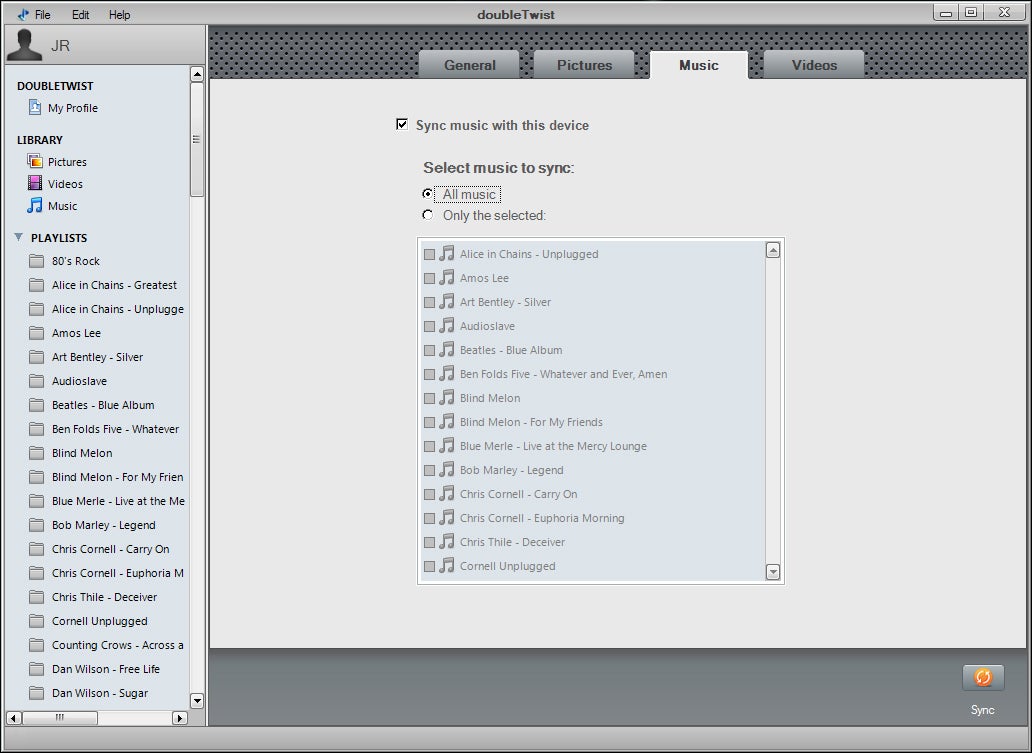
DoubleTwist AndroidManage your music--and even import your iTunes playlists--with DoubleTwist.13. Manage your music--and even import your iTunes playlists--with DoubleTwist, a free PC-based utility. The program's intuitive interface makes Motorola's Media Link offering look like a bloated relic.
14. Sync your Outlook calendar with your phone without the hassle. Install Google Calendar Sync and let it do the work for you.
15. To sync your Outlook contacts without using an Exchange server, try GO Contact Sync, an open-source utility for your PC.
16. Stay up to speed with your feeds with the help of NewsRob, a handy app that syncs your phone with your Google Reader account.
17. Want to have your PC's browser bookmarks on your Android phone? Download MyBookmarks from the Market to import them.

Power Up Your Phone

18. Get extra calling power by integrating Google Voice into your phone. Once you've signed up for an account, download the official app and watch your options expand. Bonus tip: Add the Google Voice widget to your home screen for one-touch toggling of your outgoing-call preferences.

20. Get unbilled talk time by using
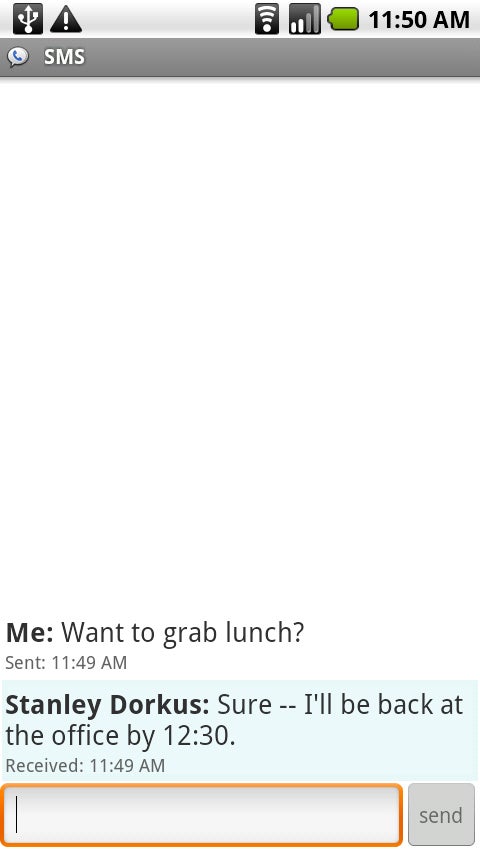
 Fring, a free mobile chat client for Android. Fring lets you make calls over Google Talk, Skype, and any SIP calling service.SMS Google Voice AndroidYou can send text messages for free through Google Voice.
19. You can send text messages for free through Google Voice--everything you need is in the app. Just make sure you change the settings to refresh every 5 minutes so that incoming messages won't be delayed. If you want faster notifications, log in to the Google Voice Website and configure your account to send you e-mail alerts when a new text arrives.
21. Cut down on calling headaches by using the free Dial Zero app to call the companies you do business with. It lets you bypass annoying phone trees and get right to human representatives.
22. Keep annoying callers away by routing them directly to your voicemail. First, open the offending person's profile in your contacts list. Then, press the Menu button, tap Options, and check the Incoming calls box.
23. The Incoming Calls screen also holds the option for setting custom ringtones for callers. TapRingtone and change each person's tune as you wish.
24. Want to use your own MP3 files as ringtones? No problem: Make a new folder on your memory card and name it ringtones. Copy your MP3s there, and they will automatically show up in your selection list. Folders called alarms or notifications will do the same thing for those respective functions.
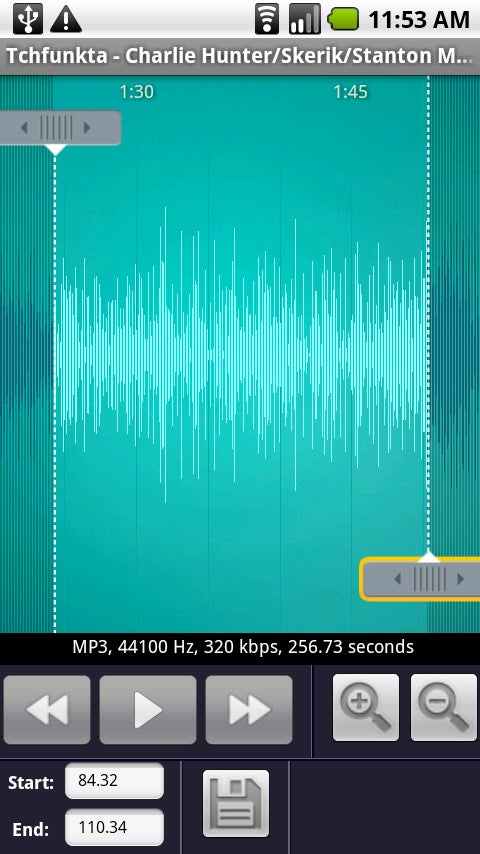
RingDroidRingDroid lets you easily edit an MP3 to grab a particular segment of a song for your ringtone or system sound.25. Check out the free app RingDroid. With it, you can easily edit an MP3 file to grab a precise segment of a song for a ringtone or system sound.
26. Android lets you keep multiple browser windows open at the same time. Long-press any Web link to open it in a new window. Tap the Menu key while in the browser to toggle between windows.
27. Prefer seeing Web pages in landscape mode? You can tell Android to always display sites that way. Select the Landscape-only display checkbox in the browser's Settings menu.
28. Android's built-in browser isn't your only option. Try Dolphin Browser for cool features such as tabbed browsing, gesture-driven commands, and multitouch zooming (yes, even on the Droid).

Secure Your Smartphone

29. Android includes an option to use simple patterns to secure your phone; to unlock the handset, you swipe your finger across the screen in a specific pattern. Look for Screen Unlock Pattern under 'Location and Security' in the main System Settings menu.
30. Want to back up your phone's data? Try MyBackup, which saves your apps, contacts, call logs, texts, and even settings to either your SD Card or a secure Internet server. You might also like SMS Backup, which periodically saves all of your texts into your Gmail account.
31. For even more protection, download Mobile Defense. The app allows you to use a PC to track your phone via GPS, remotely lock it, and then back up and wipe all of your data.

Add Essential Apps

32. If you handle a lot of Office files, Documents To Go may be just the thing for you. The free version gives you the ability to view Word and Excel files. The full paid version adds editing capabilities, along with PDF and PowerPoint viewing options.
33. Prefer working in the cloud? Get your hands on GDocs or ThinkFree Mobile Office, both of which make it a cinch to connect with your Google Docs documents.
34. If basic note-taking is all you need, download a PC-synced notepad such as GDocs Notepad With Sync. It saves documents directly into your Google Docs account for easy access.
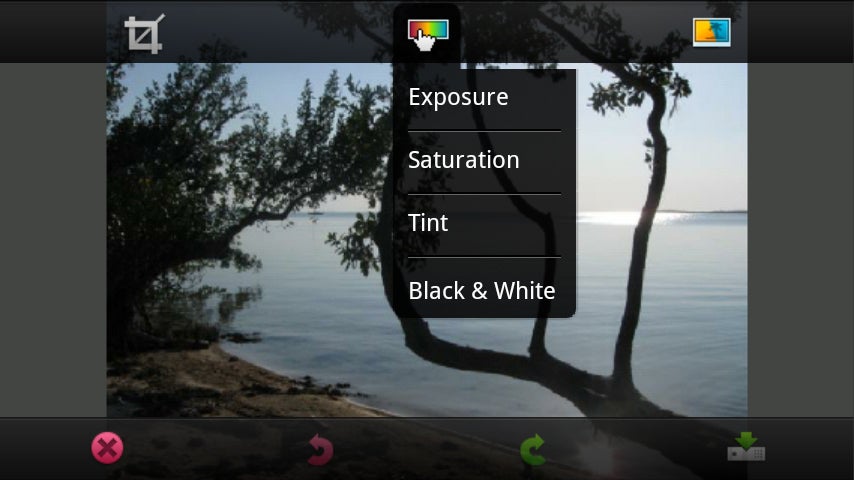
Android Photoshop.comFor on-the-go photo editing, Adobe's Photoshop.com Mobile app is tough to beat.35. For on-the-go photo editing, Adobe's Photoshop.com Mobileapp is tough to beat--and it's free, too.
36. Jazz up your Android music experience with TuneWiki, which automatically finds and scrolls lyrics next to your songs as they play. Plus, it gives you access to Internet radio streaming and some cool community-sharing features.

Customize Your Phone Completely

37. Adjust how your phone acts by using Locale. The app lets you set custom profiles for practically any circumstance--having your ringer shift to silent when you're at work, for example, or making your screen glow brighter at night.
38. Take full advantage of your phone's LED by installing Missed Call, which configures your phone's light to flash specific colors when calls from certain people slip by.
39. Edit Android's custom dictionary to include your name and other proper nouns. That way, they'll pop up in the auto-complete list as you type. Look under Language and keyboard settings in System Settings to get started.
40. If you try an Android app and decide that you don't like it, return it. The Android Market will give you a full refund for up to 24 hours after any purchase, provided that you haven't tried to return the same app before.

How to Update Galaxy Tab 7.7 Wi Fi P6810 with ICS 4.0.4 Firmware – Tutorial


How to Update Galaxy Tab 7.7 Wi Fi P6810 with ICS 4.0.4 Firmware – Tutorial

Galaxy Tab 7.7 Logo
Samsung Galaxy Tab 7.7 device can now be updated with the latest version of ICS Android 4.0.4 Firmware. Please note that this is not an official firmware version released by Samsung Electronics and is a leaked firmware which was released for select countries. Since this update doesn’t come along with any boot loaders, you can easily apply this update in your Galaxy Tab 7.7 smartphone without any issues. Applying this update won’t root the device in any manner. Also, applying this update won’t void the warranty in any manner. This all new ICS Android 4.0.4 firmware version ropes in many functionalities which almost streamlines the performance and overall battery life is increased marginally. Also issues related to the camera and other things have been addressed in this update.

Caution: This ICS 4.0.4 upgrade is only available for the Samsung Galaxy Tab 7.7 Wi-Fi Only variant which has model number P6810. One can find the device model name from the path “Settings > About Tablet”.
All the data in your Samsung Galaxy Tab 7.7 should be backed up as there is a possibility that the data may get lost or corrupted. With the help of below steps, you can easily back up the data. Ensure that you are placing all the target backup files in your computer. Don’t use PC Suite tools to backup all your data.
SMS – Use “SMS Backup & Restore app”,
Contacts – Sync with the Gmail application,
Call Log -Call Log and Restore
Images, Songs, Videos, Files – Copy to internal / External SD Card,
APN and MMS Settings – Note down from the path “Applications > Settings > Wireless and Network > Mobile Networks > Access Point Names
Minimum battery life should be at least 50% plus so as to make sure that your Samsung Galaxy Tab 7.7 device doesn’t get turned Off in the middle of firmware update. Also, from the USB Settings, you need to ensure that that the USB Debugging MODE is enabled.
Disclaimer: We should not be held responsible for any damage happened to your device due to not following of instructions though it’s very unlikely that if you follow any instructions mentioned you will be facing any issues.
So assuming that you have followed all the above mentioned instructions, you can head to the next page where we have summed up a detailed guide on how to apply this firmware update.

Procedure to Update Samsung Galaxy Tab 7.7 with ICS Android 4.0.4 Firmware:
  • Download the Samsung Galaxy Tab 7.7 ICS 4.0.4 Package and Odin from here to your computer. Once downloaded, extract both the files in your computer and open odin in your computer. Once the firmware zip file is extracted, you will get the file which is “P6810OXALPK_P6810XXLPK_HOME.tar.md5”.
  • Now, turn Off your Samsung Galaxy Tab 7.7 so that it can be entered in the download mode. The download mode can be entered by pressing the Volume Down + power button and then once the device is powered ON you will have to keep pressing the Volume Down button till it gives out the prompt to select the option of “Download Mode”. Select the same and connect your device with the computer using the original USB cable.
  • Now, once you connect the device, you will see that the ID : COM Section will turn yellow which will mean that all the drivers have been installed successfully and you are ready to proceed with the file selections.
Note: If the ID: COM section doesn’t turn Yellow, you need to check with two things which are mentioned below,
  • Install the USB Drivers in your computer &
  • Go to the Path “Settings > Wireless & Network > USB Settings” and ensure that “Samsung KIES” option is ticked before connecting the phone to the computer.
  • Click on “PDA” to select “P6810OXALPK_P6810XXLPK_HOME.tar.md5” from the extracted file. Once the file is selected, click on “Start” to start the process of firmware update. It will take around 4 – 5 minutes for applying this update.
  • Once the device is updated with the update, the device will be rebooted automatically. Once you see the language selection tool and country selection option in your Samsung Galaxy Tab 7.7, you can disconnect the connected USB cable and use it normally.
Note: Just in a rare case if the device is not updated and it gets into the boot loop mode, you need to again clear the cache from the recovery mode and retry the whole process from the start.
  • You can check on whether the firmware has been successfully updated or not from the path “Settings > About Tablet” where the firmware version will be shown as ICS Android 4.0.4 firmware.
Do let us know if you face any issues in the process of applying this firmware update. So there you go, you have now successfully updated your Samsung Galaxy Tab 7.7 device with the latest version of ICS Android 4.0.4 firmware version

How to Create Folders on Samsung Galaxy S3 for Grouping Similar Apps


How to Create Folders on Samsung Galaxy S3 for Grouping Similar Apps

The Samsung Galaxy S III is the world’s best selling smart phone which has broken the records of not only its predecessor Galaxy S II, Galaxy Note but has come out strong with iPhone. Already more than 20 millions devices have been pre-ordered and the count is still increasing.
The Samsung Galaxy S III phone doesn’t allows you to create the folders directly on to your home screen. On many of the Android powered smart phones by dragging on to other apps it automatically creates folder but the process on Galaxy S III is completely different. Here in this article we will go through the guide on how you can create folders on your Samsung Galaxy S3 and move apps to that folder.
Create Folder
To create folder on your home screen, search for the space on your screen and then tap on Menu button and then tap on Create Folder option. As soon as you do that the folder will be created and you just need to drag and drop apps shortcut on to the folder. To arrange the apps according to your choice you can create multiple folders and give specifications name for the same like Games, Tools and widgets.
Create Folder
Also the naming of the folder is little more complicated. Once the folder is create you need to open it and on the unnamed folder title you need to tap on the text for few seconds, it will ask to enter the predictive text area. When you are done press on OK.
We have gone through the video tutorial of this following at

Tuesday, 17 July 2012

How to Update HTC One X with Jellybean 4.1 Firmware – Tutorial


htc one x logoTime has now arrived to take out your HTC One X smartphone as in the due course of this article we will be checking out on how you can install the latest alpha release of Jellybean 4.1 firmware. As of now this Jellybean 4.1 update hasn’t arrived officially but as in when it arrives, we will be coming up with the same. Also, since it’s an initial release, there are things which will work while there are some functionalities which are not yet ported. For your convenience we have jotted down all of them along with the detailed pre requisites and a detailed guide on how to apply this firmware in your HTC One X.
As of now this update has just arrived for the International versions and for unlocked devices only, it should not be applied to the HTC One X devices which are powered by at&t and other operators or else it may even brick the device. Over the period of coming days we will be soon coming up with the custom ROM firmwares based on jellybean as well as on ICS.
Works:
  • Core System
  • HW-Acceleration
  • Internal Memory usage
  • Vibration motor
  • Activating Bluetooth/Bluetooth search
  • Accelerometer
  • Multi-touch
  • WiFi
  • GPS
  • NFC
  • Light sensor
  • Button backlights
  • Notification light
  • USB mounting
Doesn’t work:
  • Radio *
  • Sound *
  • Google Now *
  • Camera
  • Everything related to the issues above
One X Jellybean Update
Data in your HTC One X should be backed up with the help of below steps. Ensure that you are creating a backup of all the data with the help of below mentioned steps. Once you take the backup, move all the target files in your computer so that just in case even if these are erased, the same can be restored easily. *All the Notes need to be manually backed up somewhere as per your convenience as these can’t be automatically backed up with any apps as of now.
SMS – Use “SMS Backup & Restore app”,
Contacts – Sync with the Gmail application,
Call Log -Call Log and Restore
Images, Songs, Videos, Files – Copy to internal / External SD Card,
APN and MMS Settings – Note down from the path “Applications > Settings > Wireless and Network > Mobile Networks > Access Point Names
Minimum battery charge should be 50% plus so as to make sure that the HTC One X doesn’t get turned Off in the middle of firmware update. Also, enable the USB debugging from the Settings.
Rooting Information: Rooting & Unlocking of the Boot loader in HTC One X is a must so as to make sure that this Jellybean update can be installed. Once the device is rooted, the warranty will get void. The only way with which the warranty can be reclaimed is by re applying the Official firmware update. Download Root Checker app from Google PLAY Store and check whether your device is rooted or not, as this can only be applied on the rooted phones.
So assuming that you have followed all the above mentioned instructions, you can now proceed to the next page where we have summed up a detailed guide on how to apply this firmware update of Jellybean 4.1 in HTC One X.

HTC Droid Incredible 4G – Install Drivers, Root, Lock and Unlock Bootloader with One Click

HTC Droid Incredible 4G – Install Drivers, Root, Lock & Unlock Bootloader with One Click


droid incredible logologoIf you are having HTC Droid Incredible 4G LTE device, then you can now install the HTC Drivers, unlock the boot loader, flash the kernel, relock the boot loader, boot into the recovery mode, reboot the phone, permanent root and also you can install the APK File in your device without even doing anything in your device. In this article we will be checking out on how you can do all the above mentioned things with just an All in One toolkit. So, before proceeding, you need to ensure that you have created the back up of all the data present in your device.
In the process of this tutorial, the data in your HTC Droid Incredible 4G LTE device might get lost or corrupted, so with the help of below mentioned instructions you can easily create a backup of all the data. Once the data is backed up, you need to move all the target back up files in your computer so that it is safe.
SMS – Use “SMS Backup & Restore app”,
Contacts – Sync with the Gmail application,
Call Log -Call Log and Restore
Images, Songs, Videos, Files – Copy to internal / External SD Card,
APN and MMS Settings – Note down from the path “Applications > Settings > Wireless and Network > Mobile Networks > Access Point Names
Enable the USB Debugging Mode too from the path “Settings > Applications > Development > USB debugging”. Also the battery level should be not less than 40% so as to make sure that the device doesn’t get turned off in the middle of firmware update.
So assuming that you are done with all the above mentioned instructions, you can now head to the next step where we have summed up the detailed guide on how to make use of this all in one tool for your HTC Droid Incredible 4G LTE device.
Procedure to Use All In One Tool for HTC Droid Incredible 4G LTE device:
  • Download the HTC Droid Incredible 4G LTE All In One Package from here to your computer. Once downloaded, extract the same to get the below mentioned files.
Droid Incredible Toolkit extractToolkit
  • Even if single file is missing, you need to download again and extract the same from the above link. From the extracted file, click on the “Droid Incredible 4G LTE v1.0” executable file and then you will get the screen as mentioned below.
  • Now, you need to just connect the device and select the options as mentioned in the toolkit. Ensure that the USB Debugging is enabled and also the HTC Sync tool should be completely disabled.
Droid Incredible 4G Toolkit
  • Download the “Root Checker” app from the Google PLAY Store and once downloaded, you now need to open the same and check whether the device is rooted or not if you have permanently rooted the device from the above mentioned one click tool.
So there you go, you have now successfully learnt on how you can use the all in one click tool for your HTC Droid Incredible 4G LTE device. Do share with us in the comments section just in case if you face any issues in the process of using this all in one tool.

How to Update HTC HD2 with Jellybean 4.1 Firmware – Tutorial

How to Update HTC HD2 with Jellybean 4.1 Firmware – Tutorial

HTC HD2 Logo 
HTC HD2 smartphone can now be installed with the latest firmware release of Jellybean 4.1 update. This is not an Official firmware update released by HTC but is a custom ROM firmware which was released by the third party developers. As of now there is no estimated time on by when there will be an official release but as in when it comes we will update you with the same. Since this is a beta release, there will be some functionalities which work and there will be some while there still are under development. In the past few days we have seen various custom ROM firmwares and also in the coming days we will be checking out the same. As of now this firmware can only be installed on the rooted devices and which have the clock work mod recovery installed in their devices.
Working:
  • Mobile Data 3G/2G
  • Calls
  • WiFi
  • Bluetooth
  • SMS
  • Sound check download page for fix
  • Video Playback
  • USB Mass Storage
Not Working:
  • Camera
  • Browser works but display is messed up.
  • Error when Installing some Apps
  • Google Now crashes.
  • In the process of this tutorial, the data in your HTC HD2 device might get lost or corrupted, so with the help of below mentioned instructions you can easily create a backup of all the data. Once the data is backed up, you need to move all the target back up files in your computer so that it is safe.
SMS – Use “SMS Backup & Restore app”,
Contacts – Sync with the Gmail application,
Call Log -Call Log and Restore
Images, Songs, Videos, Files – Copy to internal / External SD Card,
APN and MMS Settings – Note down from the path “Applications > Settings > Wireless and Network > Mobile Networks > Access Point Names
  • Disable all the antivirus suites installed in your device as well as in yuor computer or else it will interrupt the device update. Enable the USB Debugging Mode in your HTC HD2 from the path “Settings > Applications > Development > USB debugging”. Also the battery level should be not less than 40% so as to make sure that the device doesn’t get turned off in the middle of firmware update.You should have complete read / write access in your computer.
So assuming that you have followed all the above mentioned instructions, you can now proceed to the next page where we have summed up a detailed guide on how to upgrade the firmware of HTC HD2 with the latest version of Jellybean 4.1 update.

Procedure to Update Jellybean 4.1 Release for HTC HD2:
  • Download the Jellybean 4.1 Package from here to your computer. once placed, you now need to connect your device to the computer using the original USB cable. Once connected, place the downloaded Zip file in your device.
  • After placing the file, disconnect the device connected from computer. Turn Off the device so that HTC HD2 device can be entered in the recovery mode via the boot loader mode. The Boot loader mode in HTC HD2 can be entered by pressing Volume UP Key + OK button, and holding both simultaneously press the Power Button. If the phone boots in the normal mode then you need to try again to enter into the boot loader mode.
  • Select “recovery” option to enter into the recovery mode. In recovery mode, select Wipe data/factory reset and also you need to select Wipe Cache partition for clearing all the cache data. If there is any lag fix installed in your device, then you will have to disable the same from the “advance” option.
  • Up next you will have to select install zip from sd card, then select choose zip from sd card. Scroll down to select “ICS 4.0.4 Firmware Package” and then “Google Apps package” which you have placed in the SD card. Once the file is selected it will take around 5 – 10 minutes for getting this one applied in your device.
Note: If the device gets stuck in the HTC logo or gets into the boot loop mode then you need to long press the power button and turn off the device. Repeat the process from the start by following the instructions.
So there you go, you have now successfully updated your HTC HD2 device with the latest version of Jellybean 4.1 firmware. Do let us know just in case if you face any issues while you perform the update in the comments section below as we will try our level best to sort out the same.

Fix WiFi Connectivity Error on ICS Android when SIM Inserted with WiFi Fix App

Fix WiFi Connectivity Error on ICS Android when SIM Inserted with WiFi Fix App

It looks like problem with Android and Wi Fi doesn’t get over with most of the Android consumers. Sometimes you might be able to connect your phone with Wi Fi but sometimes for many users the problem keeps repeating. Certainly most of the issues are related to the Wi Fi configuration but the problem can be different in different cases. One such explicit case was brought up by Fardjad wherein he noted that Wi Fi on his newly installed Android 4.0 Ice Cream Sandwich OS doesn’t work.

WiFi Fix

As a developer, he thought that’s a kernel issue as these things are pretty common with custom firmware’s but eventually he learnt that it was the problem when SIM card is inserted in your mobile phone. Furthermore he was helped by developers at XDA Developers Forums and he realized that changing the Wi-Fi country code in the Secure System Settings will resolve the issue quickly. Finally a solution to his problem was brought live on Google Play Store as he designed an Android application which can automatically change the Wi-Fi Country code.

WiFi Fix

Sadly, this application works only for the rooted devices and it can be downloaded in the APK file format easily. The working of this application and installation is quite easy, you just need to open the apk file for installation after when you have downloaded, copied it to the root of your SD card. Once application is opened, you should do nothing as the application will automatically change the Wi-Fi country code when needed. You can invoke WiFix by manually dialing “*#94349#.

WiFi Fix

Users who want to disable this application they can simply uninstall this application using the known Android app uninstall process.

Sunday, 15 July 2012

The Best Android Apps That Can Help You Get Motivated


The Best Android Apps That Can Help You Get Motivated

Whether it’s waking up on the wrong side of the bed or being nervous about an upcoming client presentation, you have those moments when you need a little push in order to lighten your mood and get things done.  Here are a few Android apps you can check out in case you need a bit of motivation in the middle of your daily grind.

1. Goal Tracker


Start your day by setting short-term or long-term goals with this basic but nifty application.  Put in anything from finishing the book you’ve recently bought to saving up for a new car, and Goal Tracker will give you a list of when everything is due and how much you’ve done for each.  In case you get the urge to procrastinate, this app will be generous in giving you reminders .


2. Workout Trainer

You want to be healthy, but you don’t know where to start.  If you don’t have time to head to the gym, download this app instead. You’ll get expert coaches who can help you start the right way with timed exercises that are complete with audio and video instructions.  It’s a great free app if you’ve just recently gotten off the proverbial couch, but if you want to advance, you’ll need to get the Pro account to access more of its goodies.


3. Drinking Water With Carbodroid


You may take drinking water for granted, but getting a healthy amount of it in your system everyday can definitely help you lose weight and give you a mental boost.  Drinking Water With Carbodroid is an app that is too cute not to enjoy – especially since you can make the Water Droid smile if you get your two liters of water in daily.  It even prompts you to get a glass of H2O in case you’re too immersed in work to remember.


4. Get Inspired


In case you’re having a bad day, this simple app can put a smile on your face with encouraging words of wisdom from people who have made it to the top.  Having the option to share the good vibes with your friends is additional icing to the cake.


5. Motivation To Your Mobile


If you need a virtual nudge to start you off your goals, this app has all the positivity you’ll ever need.  Motivational speaker Derrick Hayes gives you a word and a message a day to inspire you to do your best on the things that you want and need to do.


6. Idea Generator


You’ve probably experienced brainstorming with your creative and marketing team and hitting a mental block the size of the Great Wall.  This app can most probably make things easier for you.  By randomly combining words set under different and customizable categories, it may just switch on that light bulb above your head.  You can even send the results of your thinking session to your email.

7. Mindjet for Android


Once you have your ideas, you’ll now need to organize them.  Mindjet for Android is a great way to map them out and see your entire game plan.  Suddenly lost?  Just go back to your charts, and you’ll see where you’re headed.  You’ll need to use this app on a tablet device though, as it’s going to be hard to see and appreciate on a phone.

8. Build Confidence

.
End your day with a pat on the back and reward yourself with quiet time.  Build Confidence is an app from clinical hypnotherapist Andrew Johnson that will help you relax and prepare you for the following day through guided meditation.
Do you use other apps that help you get going?  Share them with the rest of us in the comments box!

10 Best Android Apps For Your Health


10 Best Android Apps For Your Health

First of all, users need something to get themselves pumped up to exercise. That’s where Nike BOOM comes in. App users choose a workout and music choice and the app will deliver encouragement so that they can reach that final mile. The music and the workout records aren’t just the only feature though – premier athletes will be giving inspiration as they tell exercisers to push themselves to the limit. Facebook integration also manages to update friends about real-time progress, hoping for those “likes” to rev users up.

2. Backpacker GPS Trails


Running aimlessly won’t help nerds get back into shape – what they need is a plan. What better way to make that plan than via GPS? Backpacker GPS Trails helps organize that morning run. With this app, a smartphone becomes a GPS – which works independent of cell networks. Maps are easily reached and trails can be tracked. Users can even send out Facebook updates. More importantly, this app keeps a record of the trail runner’s performance, just in case they want to compare against their previous record.

3. Endomondo Sports Tracker

For those with a more urban bent, Endomondo Sports Tracker is a great app for use in cities. Runners, cyclists, and walkers will find that this app will be an excellent workout companion. First of all is the GPS function – which makes sure the user is never lost in whatever city they are. Next is the audio feedback; every mile has the app giving encouragement, while friends can record pep talks for the user. It’s also got distance, time, and calories burnt recorded. For those with a more competitive bent, they can try to beat their friends’ times or the current champion’s time – which is a great way to put some fire in some people’s bellies.

4. Calorie Counter

Now for the other part of the fitness equation: nutrition. Healthy eating makes sure that people don’t chow down more than they burn – which is a basic principle of losing weight. For that, smart phone owners should go for fatsecret’s Calorie Counter. This app has several features that will definitely help keep people’s weights down. First is the food diary, which schedules meals. This feature in combination with a diet calendar, which tracks calories consumed and burned, will help greatly in lowering calorie intake. For those who like eating out, there’s also some current nutritional info on popular restaurants and food chains, as well as a barcode scanner for those shopping at their grocery store.

5. BMI Calculator


A person’s Body Mass Index is their key to making sure they’re not overweight. It can be a bit complicated to total it all up, but with Woytek’s BMI Calculator, users should be able to determine their BMI. Note this app is for normal people and not super-athletes – if someone wants to know how he or she measures up to the average then this app is it. It handles both metric and imperial units, so with a simple option switch people don’t have to scramble for their conversion tables.

6. Soleil Organics


Another way to eat healthy is to eat organic. However, it can be a bit difficult to understand some of the labels on these products – also, there are some products that masquerade as “organic” but really aren’t. Soleil Organics is an app for discerning buyers to make sure they aren’t fooled by organic labels. It also provides tips on what food to choose. The food list is a bit limited right now but expect an update to that as this app becomes more popular.

7. Instant Heart Rate Pro


The heart is one of the body’s most important organs.  With Instant Heart Rate Pro, smart phone owners can be assured that their ticker is doing great. Right now, this app is the most accurate way to measure a person’s heart rate on the platform – and this is without any added equipment. All it needs is for the user to place their index finger on the phone’s camera and in a few seconds a real time heart monitor will be available. This is very useful when tailoring workouts or for those with heart conditions. Plus, its accuracy is constantly being tested, so users can be sure that the app works perfectly.

8. First Aid


Being healthy isn’t just about keeping fit. It’s also about being able to handle medical emergencies. First Aid, an app from Health Team, is the best bet for anyone in an emergency. A simple guide for any situation, the app is a boon for anyone trying to treat someone in need or participating in a rescue effort. Proper application of  first aid can mean life or death in some situations and this app makes sure that whatever help can be given is given properly.

9. ePocrates

Proper diagnosis and treatment is another side of keeping healthy. For those times that someone needs medical info on their condition or some drug info, ePocrates is there. Used by a majority of US physicians, this app is the leading drug reference on the market. It’s essentially a pharmacist in an app and would be a great help for anyone taking regular medication.

10. Pocket Yoga


With all the physical sides handled, let’s talk about the mental side of health. Pocket Yoga lets users have access to a detailed Yoga instruction guide to ease their bodies and minds.  With over three different practices, three different difficulty levels and three different durations, it totals up to twenty-seven different sessions. All of this is clearly presented with detailed instructions and images – it’s like having a portable Yoga instructor. This is a great help for anyone looking a bit of peace of mind in their daily life.

Automatically Setting Your Phone to Silent Mode According to Place or Time


Automatically Setting Your Phone to Silent Mode According to Place or Time

Because smartphones are both handy and useful, we tend to toss them into our bags and bring them with us anywhere we go–at our bedside, in our offices, at dinner dates, and back to the bedside as we retire for the night.
While your Android phone can alert you to incoming notifications, calls, text messages, or important reminders, there are certain circumstances when you’d need to use audible alerts, and there are certain situations when you need to place your phone in vibramode or silent mode.
But, having to switch between sound profiles can be pesky and can chew up your time.  It’s often easy to forget to switch from silent mode to audible mode, or vice-versa.
In such a dilemma, the Auto Vibrate app for Android can be of help.  This app automatically switches your phone’s sound profile based on where you are or what time of the day it is.


The Auto Vibrate app is so easy to use. Its simple interface contains two main tabs, one for Location and the other for Time.
Under the Location tab, you can add a specific location, and set its radius in meters. You can add your desired location by pressing the Add button.
Once the specific location is set, your phone will automatically switch to silent/vibrate mode when you enter the premises. Your phone will know when to shut its mouth, for instance, when you enter cinemas or attend a meeting in the office.
You may also unmark a location from the list to prevent the phone from automatically switching to silent mode whenever you’re in the area. Take note that you will be needing an Internet connection before you can add a new location to the list.


Aside from assigning a specific location, you can use also use the time to automatically switch your phone into silent mode.
Under the Time tab, you can set the appropriate time frame for your phone to stay in silent mode and when not to. You can set the starting and end time, as well as the number of days it will be repeated in the week. Your phone will automatically toggle from silent when the assigned time strikes. So, whether it’s time to wake up, or time to retire for the day, your Android phone will know what to do.
If you want to try this app, download Auto Vibrate free from the Android Market and use it for automatically toggling normal or silent mode according to the place or time that you specify.
Do you frequently switch between sound profiles on your phone?  How has Auto Vibrate made profile switching more convenient for you?